
I use Outlook for my email and typically have it opened pretty much the whole day. I have Outlook configured (as IMAP) to fetch my personal gmail emails as well. Sometimes, especially if I’m travelling, I use the gmail web interface/app, but on a day-to-day basis Outlook is usually what I use for all my email needs.
For something I’m currently working on, I wanted to see how I could use Outlook to fetch my domain email as well. I think you’ll find this post useful if you have several email accounts – personal, work and domain emails and want to access everything in a unified manner.
Let’s assume you have the following emails:
yourname@gmail.com – personal email
yourname@workmail.com – work email
admin@yourdomain.com – domain email 1
support@yourdomain.com – domain email 2
If you can’t be bothered with any of the initial setups, the simplest is to go to gmail.com to access your personal email; use Outlook for work email (often it’s configured already if you have a work computer); and use a domain specific url to access domain emails (e.g., https://www.bluehost.com/cgi/webmail) – this would also mean you have to log in/out multiple times depending on how many domain email accounts you have.
Taking it one step further, you can easily configure your gmail to fetch your domain email. So basically you log into yourname@gmail.com, and then you can check all your domain emails as well from there. There are many tutorials/videos showing how to configure gmail to access third party emails (as POP).
Here’s a BlueHost specific link – https://my.bluehost.com/cgi/help/gmailpop
and here’s a video –
One thing to note when doing the above configuration is to go with the ‘Send through yourdomain.com SMTP servers’ option. For instance, this is what I have (you should be able to find the specific settings from your domain’s help pages):
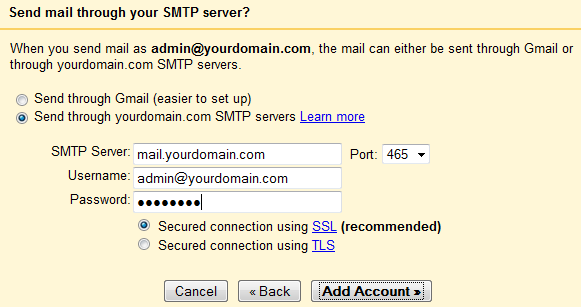
If you go with the ‘Send through Gmail’ option things will still work fine, but the problem is when replying to the emails you get to your domain email. Example, say you get an email to admin@yourdomain.com. Now, you can login to gmail, read your email, but when replying to this email, you want the ‘From’ field to show up as ‘Administrator – yourdomain’ or something, right. If you went with the ‘Send through Gmail’ you can’t do this – well, you can, but it’ll say something like “yourname@gmail.com on behalf of Administrator <yourname@yourdomain.com>” which doesn’t look very professional . This is the only drawback; at least as far as I know, so go with the ‘Send through yourdomain.com SMPT servers’ option.
Ok, so that was the gmail configuration part.
Now, if you want to access your gmail folders in Outlook, you need to first add your gmail account to Outlook (I’ve done it as IMAP, but you can do POP as well based on preference). Plenty of sites explaining how to do this – just Google ‘gmail in outlook’. Once you have done this, all your gmail folders will show up in Outlook, including the folders related to your yourdomain.com emails.
So far so good, and at this point you can read your domain emails through Outlook. However, you still can’t reply to those emails using your domain email (you will only be able to select yourname@gmail.com or yournam@workmail.com as the sender). The solution to this is to add your domain emails as ‘send only’ accounts. First thing you need to do is add your domain email as a normal account into Outlook (you’ll need the server settings for this). Once the account has been added, configure it as a ‘send only’ account. The way you would do this in Outlook 2010 is by going into Send/Receive tab –> Send/Receive Groups –> Define Send/Receive Groups.

Then go All Accounts –> Edit:
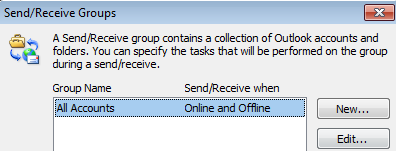
Select the account you want, and uncheck the last 2 options:

Some details related to other Outlook versions can be found here – http://www.msoutlook.info/question/308.
That’s it really. Now you have all your email accounts properly configured in Outlook. If you want to reply to a ..@yourdomain.com email, select the email from the correct gmail folder in Outlook and reply. Just make sure you select the correct account for sending (e.g., admin@, support@ etc).
By the way, in my case I wanted everything to be accessible through gmail as well, but if you only want your ..@yourdomain.com emails accessible through Outlook, it’s pretty straightforward. For instance, https://my.bluehost.com/cgi/help/outlook2010 contains all the settings to configure your BlueHost email in Outlook.
 Thusitha Mabotuwana's Blog
Thanks I have been looking for this information. I tried the above steps but I think I may have been using wrong port number.