
Visualization techniques have been evolving rapidly and with a growing trend towards ‘big data’ and ‘analytics’ there are so many technologies to choose from. If the development technology is not a constraint, D3 is arguably the best way to go, but if you are looking for some charting capabilities within a WPF/C# development environment your free choices are somewhat limited. Based on what I have tried out so far and read in various forums, here are some popular ones:
- MS Chart Controls – Pretty decent collection of controls, but you need to use ‘old’ Windows Forms to use these. You can host the Form within a WPF application if you really want.
- WPF Toolkit Charting Controls – I think this is the first real WPF charting control Microsoft released. Charting options are good, but they still look like the old Forms-based charts. Here is a good tutorial to get started.
- D3 1.0 – Pretty easy to get started, but I felt the number of options available was rather limited. First attempt to have D3 library capabilities in a WPF environment I think. There is a good tutorial here on how to get started with these charts. Seems like the WPF effort has somewhat been abandoned and there is more emphasis on having the D3 capabilities in Silverlight now which is called D3 2.0.
- Metro Charts – “This project provides a small library to display charts in Modern UI Style (formerly known as Metro) in WPF, Silverlight and Windows 8 applications”. This is the best I have seen so far and the UI looks much better and modern compared to all others. The trouble is, these are aimed towards Windows 8 applications and you need Visual Studio 2012 to run the sample code you get off the site. You still can get these to run on Windows 7 with Visual Studio 2010, and that’s what I’m going to focus on in this post.
– To get started, download the sample code from http://modernuicharts.codeplex.com/releases/view/106190 (if you don’t want to go through the steps yourself, just download the project
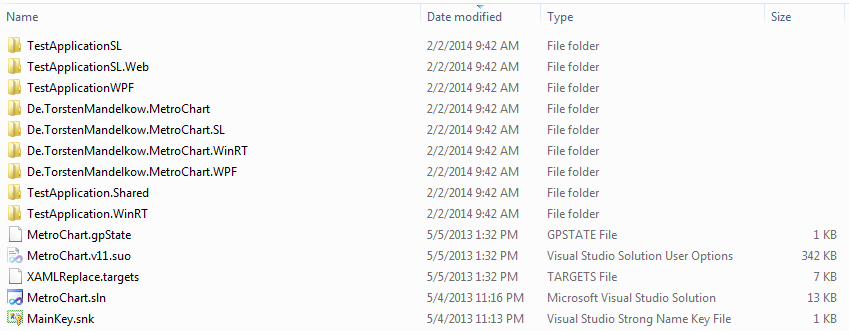
which contains all the changes I’m discussing here and you should be good to go! Just rename to a .zip – WordPress doesn’t allow me to upload zip files). You should have the following folders and files:
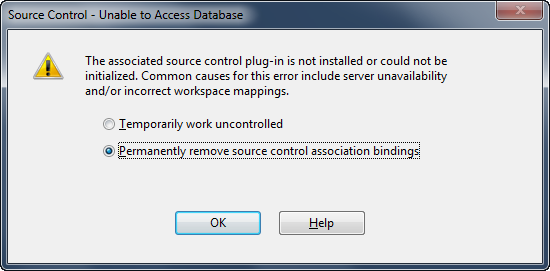
– Open the solution file. Permanently remove source control since we won’t be needing this.
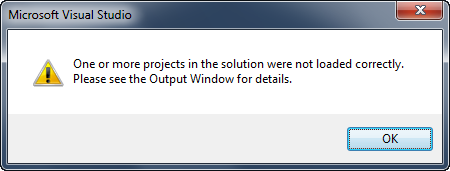
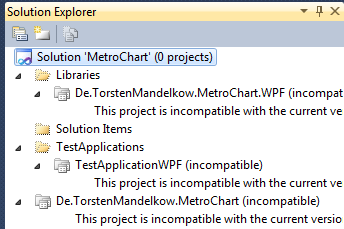
– At this point you’ll get a bunch of errors starting from:
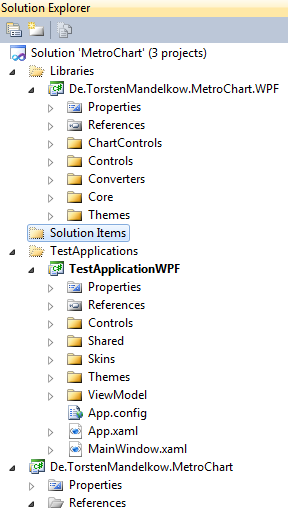
and your Solution Explorer will like this:
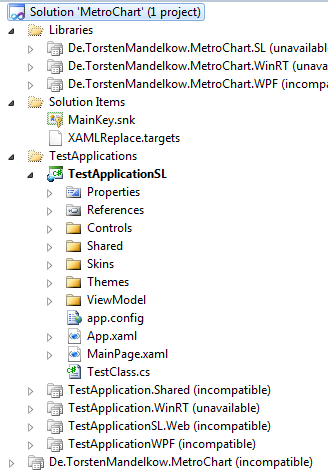
– Delete all projects except for the following three:
– Save the workspace and close Visual Studio
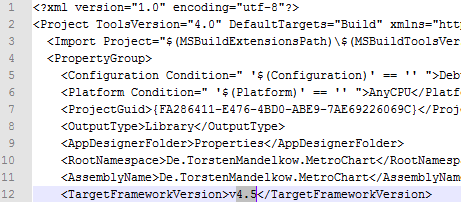
– Now, open Windows explorer and open the .csproj file in a text editor (like NotePad++) and change the ‘TargetFrameworkVersion’ from 4.5 to 4.0. You need to do this for the 3 files under De.TorstenMandelkow.MetroChart, De.TorstenMandelkow.MetroChart.WPF and TestApplicationWPF folders.
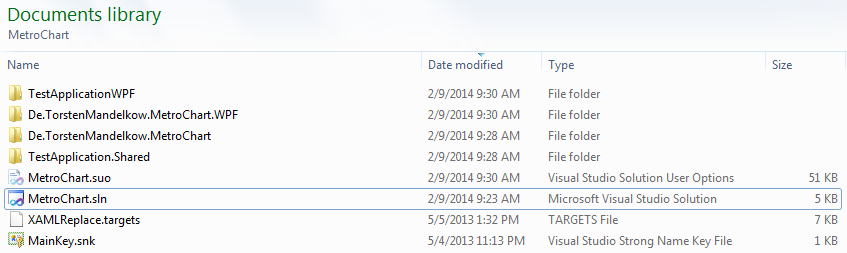
– If you want, you can clean up your folder a bit as well so that you have only the following on disk. This step is optional.
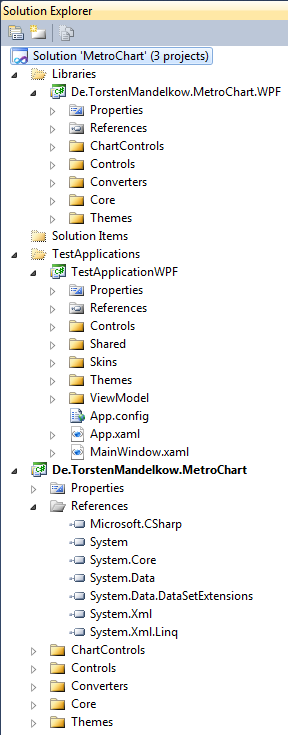
– Open the main solution (i.e., MetroChart.sln). Remove source control association bindings if a message pops up. You should see the following where the source code is now loaded into VS.
– Change startup project to TestApplicationWPF
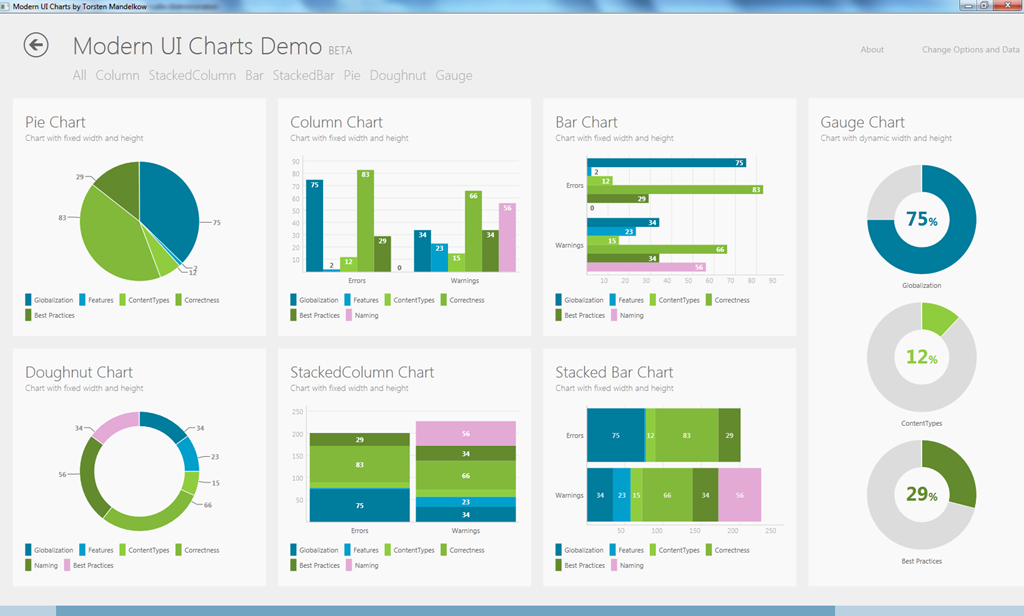
– Hit F5, and you should see the following 
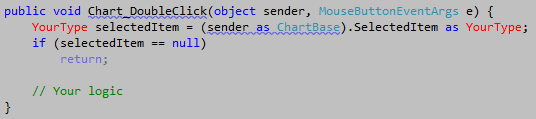
One of the things I wanted to do was find the underlying data when a user double clicks on a chart. To do this, you can add something like this in your xaml:

Then in your code behind, you can handle this event in whatever the way you want.
Play around. Using Metro Charts is fairly straight forward.


Thank you! That helped a lot!
i have try to bind the itemssource of the chart to a BindingListCollectionViewSource but is not working or DataTable.DefaultView not working either.
I’m not sure what code you have..but don’t you have to use the DataContext instead – see http://stackoverflow.com/questions/20770438/how-to-bind-datatable-to-datagrid.
great explanaition
Have you found that most of these charts are quite slow? I was hoping to find an open source chart that can beat the performance of SciChart.
what files (.XAML and .CS) can be modified exactly !
Very goog…. I’m modifying generic.XAML of TestApplicationWPF and I don’t recognize his code behind (.cs) ?
Very goog…. I’m modifying generic.XAML of TestApplicationWPF and I don’t recognize his code behind (.cs) ?
Good job …… I’m modifiying generic.XAML of TestApplicationWPF so what’s exactly his code behind in .CS